Styling Slides
Designing slides requires a balance between creativity and minimization of distractions. Here is a compilation of our favorite tips for creating effective lyric slides in Presenter!
Selecting a Font
Choosing a good font is essential for creating an effective lyric slide. It's important to select a font that is clean and classic, avoiding overly creative or distracting options that may hinder readability. We recommend using Sans Serif fonts, such as Tahoma, Gill Sans, or Open Sans. Additionally, you might want to explore CMG Sans, a free font available from Church Motion Graphics, which is specifically designed for church lyric slides.
Font Color
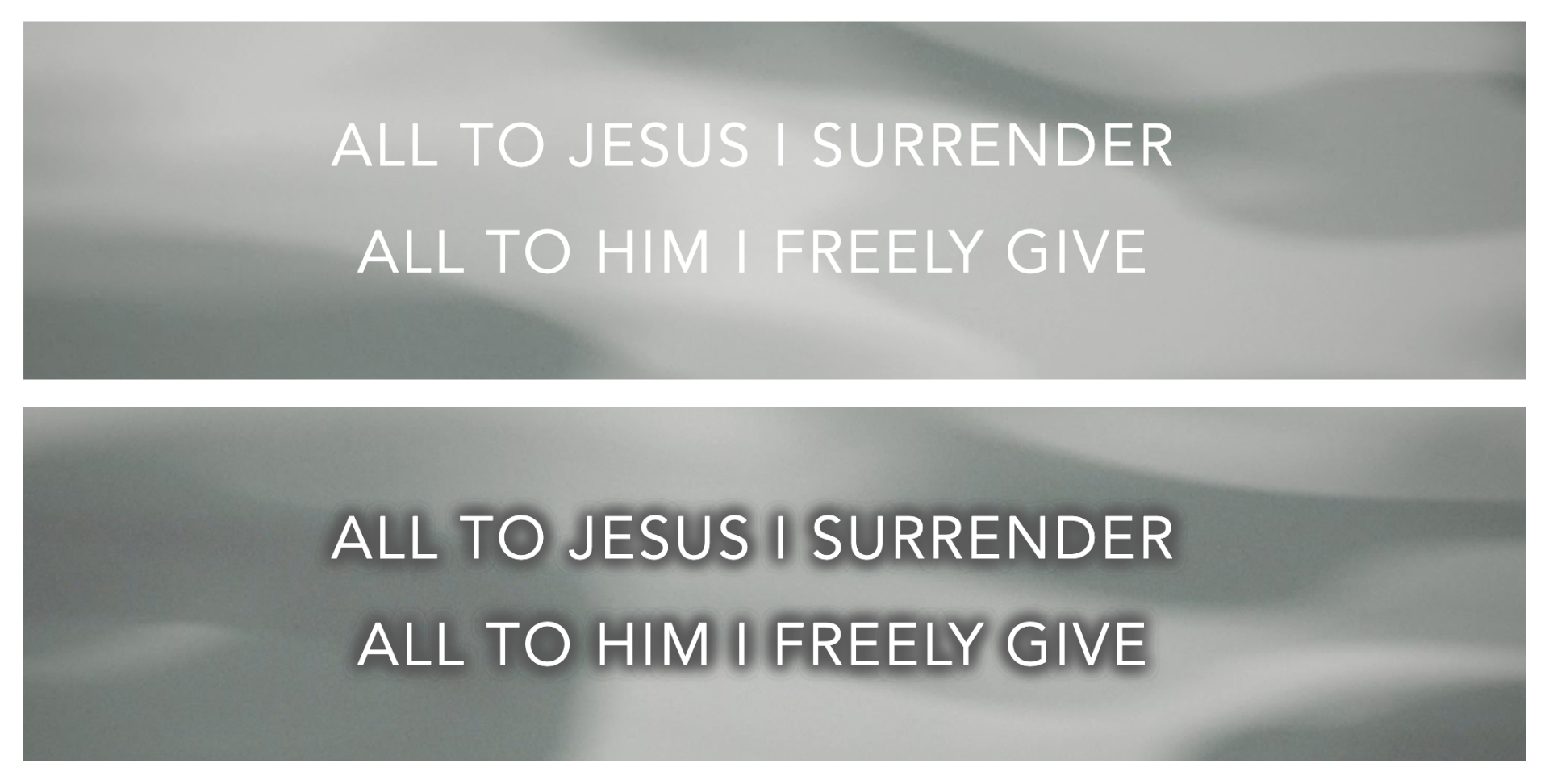
Ensure that the color of your text contrasts well with the chosen background. Additionally, consider adding a subtle shadow or outline around the text to enhance its visibility. In the image below, you can see how the shading around the letters increases contrast against the grey motion background.
In Presenter, you can easily add a shadow and/or outline to your text. Just go to the lyrics template editor and adjust these settings according to your preferences. You can also explore the "Advanced" settings to modify aspects such as the spacing between letters and lines.
Lines per Slide
Aim for two lines per slide as a good standard, but it's also acceptable to use one or three lines depending on the song. Song sections often break every four lines; for example, choruses are typically around four to eight lines long. This is why many churches prefer the four-line format. However, using fewer words on each slide can enhance the audience's reading experience. Keep in mind that this may result in your slides person having more slides to navigate through.
Lastly, ensure that your font choices are consistent across all slides.
Selecting a Background
When choosing a background, it's important to avoid options that are distracting or overly busy. Additionally, select a background that matches the overall mood of the song.
By default, Presenter sets your slides with a black background. Using white text on a dark background, rather than dark text on a light background, provides the best viewing experience. This combination reduces light pollution and is easier on the eyes.
If you're looking for more variety, you can upload your own images to your Media Library. Just ensure that your text remains clearly visible against your chosen background.
Motion Backgrounds
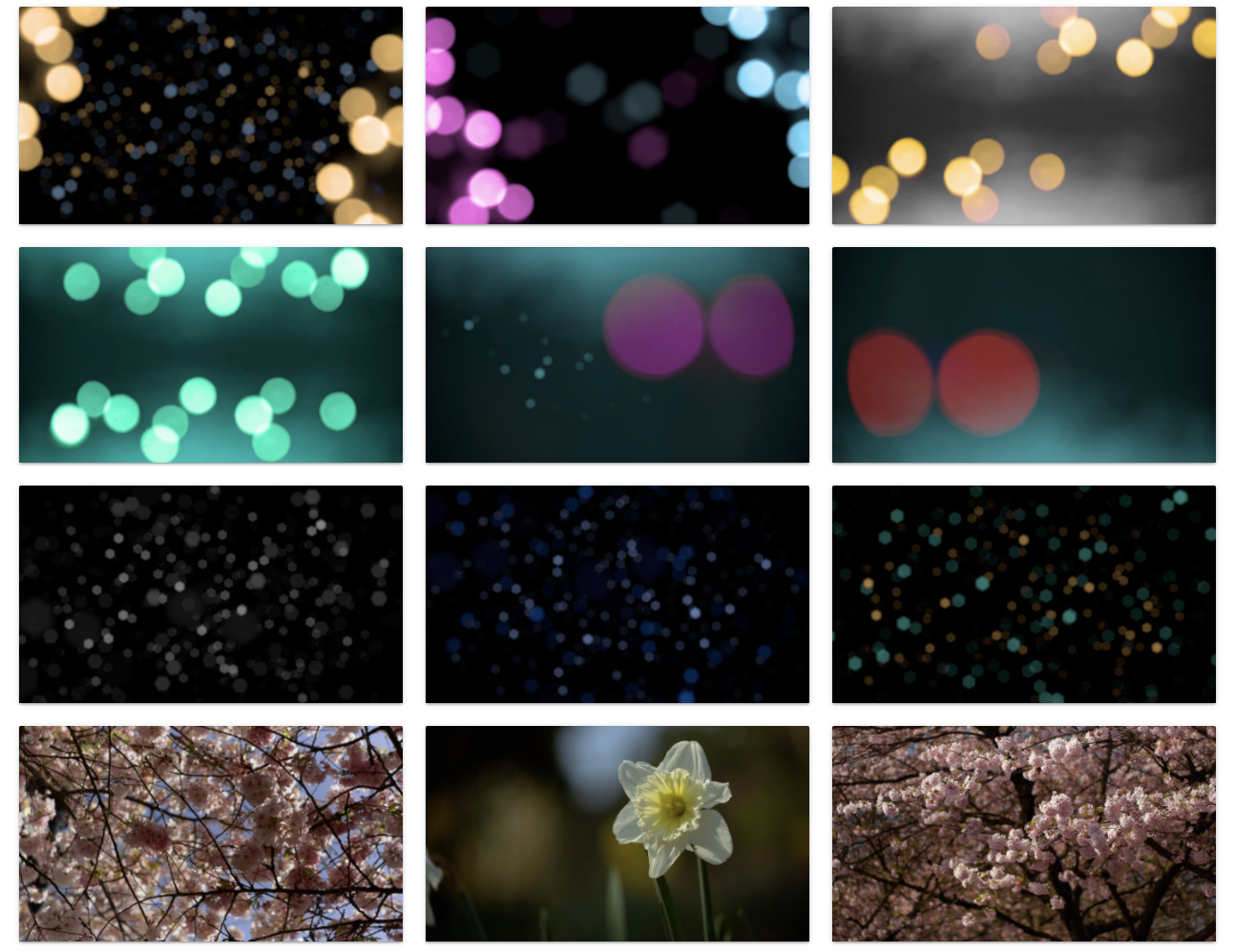
When working with motion graphics, it's best to choose options that feature subtle movements and ensure that the motion is seamless when looped. You don’t want any noticeable breaks when the graphic restarts.
WorshipTools offers three different membership tiers: Free, Pro, and Pro Plus. Both Free and Pro account holders receive access to one free motion graphic and one slide template each month. With a Pro Plus account, you gain unlimited access to all the graphics and templates available in our library. Additionally, you can find and upload other options from the internet to your Media.
Line Backgrounds
Elevate your church presentation with a simple line background! Adding a line background behind your worship lyrics can make for a cool, yet non-distracting slide design. To add a line background on Presenter, open up a song in the lyrics editor, then click on the text you want to edit to enable the formatting options on the right. Under the SHAPE > Layer section, set the Background color to black and be sure to check Background on text lines only.