Countdown Timers
To set a countdown timer, you'll need to have a service open. The bottom-right corner of Presenter includes options for Alerts and Countdowns, with Alerts showing as the default, so be sure to click on the clock icon to show the Countdown feature.
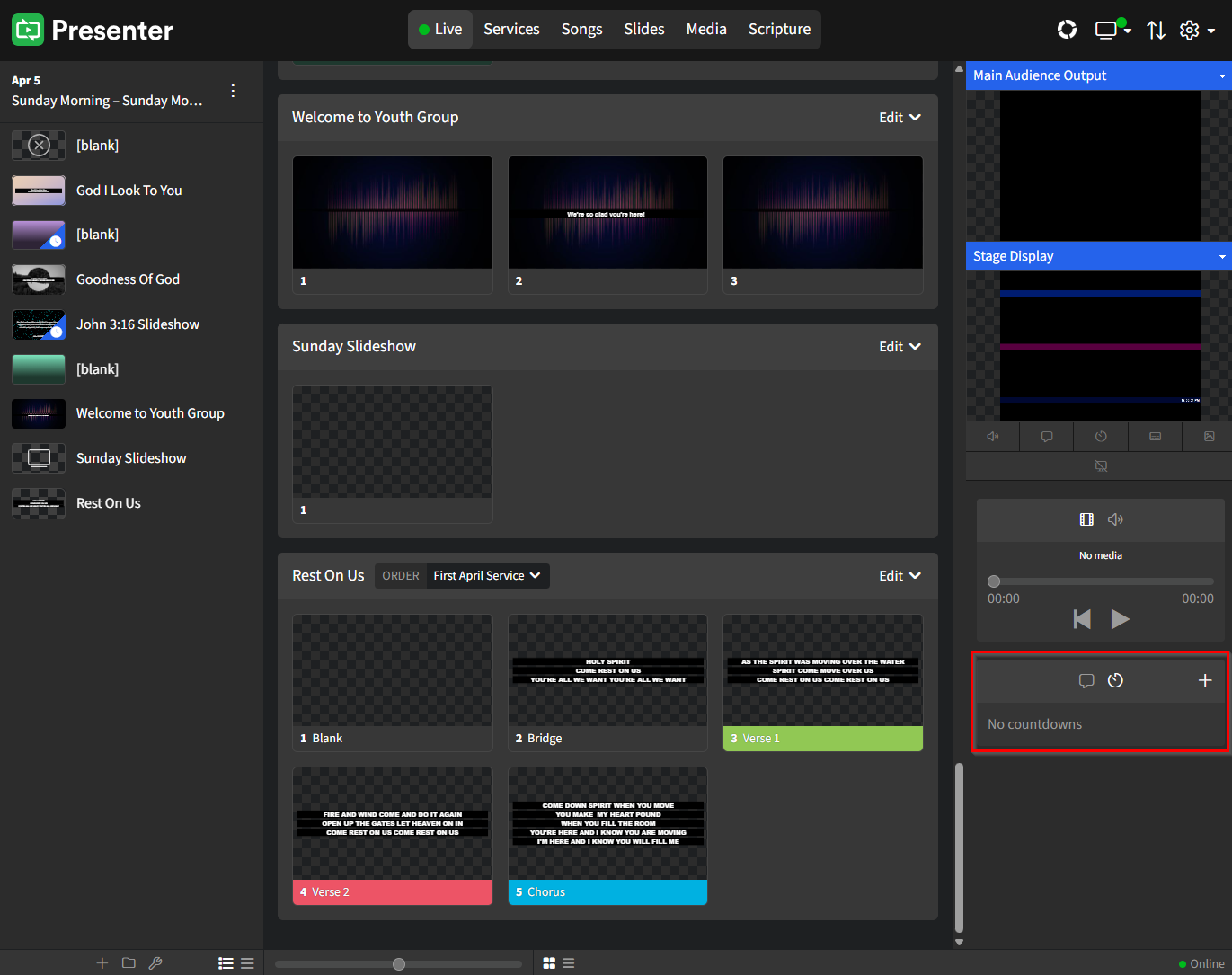
Click + to open the Countdown options. You have three timer options to choose from:
- Count down (set duration in 00:00:00 format for hours, minutes, and seconds)
- Count up (starts at 0, goes until stopped)
- Countdown to Time (set a designated end time)
All three timers can be saved and ready to be sent to the Audience screen when ready. Just click the screen icon and then the play button to send the timer to the Main Audience Output.
Please be aware that the timer will overlap any content currently displayed, such as motion graphics, lyrics, or slides. Therefore, it's important to ensure that the display screen is free of any text that might conflict with your countdown. Additionally, you should adjust the position and size of your countdown using the Countdown template to avoid clashing with other text or designs that are being projected simultaneously.