Sending Alerts to Screens
In Presenter, alerts allow you to send messages instantly to either the audience or the stage team. This feature is particularly useful for making last-minute changes during a service.
When you have a service open, you'll find a toolbar in the bottom right corner of Presenter that includes options for Alerts and Countdowns. This image shows the alert option selected, providing an option to send a Stage Display alert and an Audience alert.
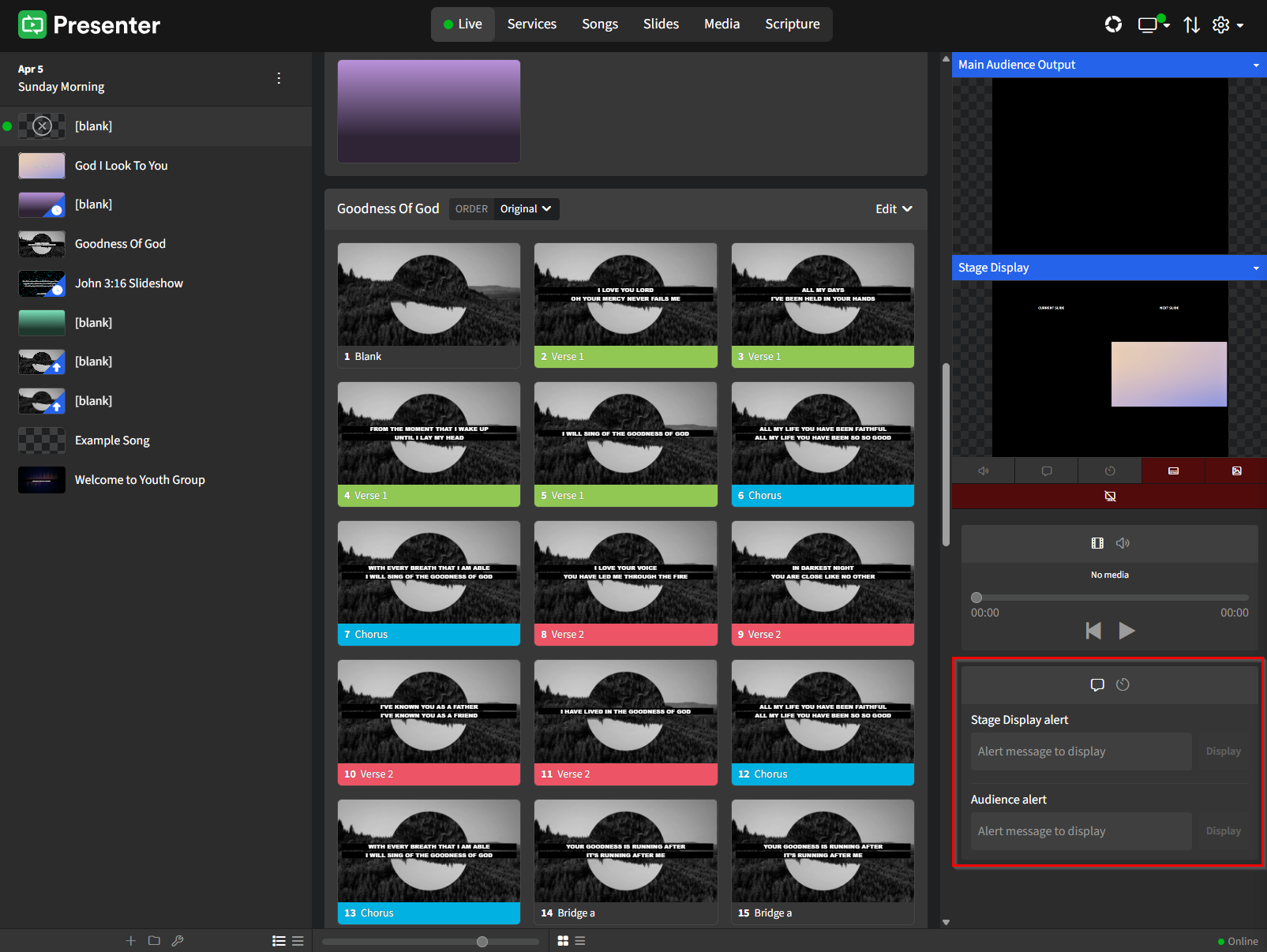
Stage Display alerts and Audience alerts can be shown simultaneously.
To get started, ensure that you have a service open. Then, in the bottom right corner of the Presenter, click on either the Audience alert or Stage Display alert field. Enter the text you wish to display in the box, and then click Display.
Please note that the alert will overlay whatever content is currently being projected on the screen. For example, as shown in the image below, "Welcome!" is displayed over a motion graphic. Ensure that the audience's display screen is free of any images or text that may clash with your alert. You can press the F12 shortcut key to clear the display and present a clean black screen before showing your alert.
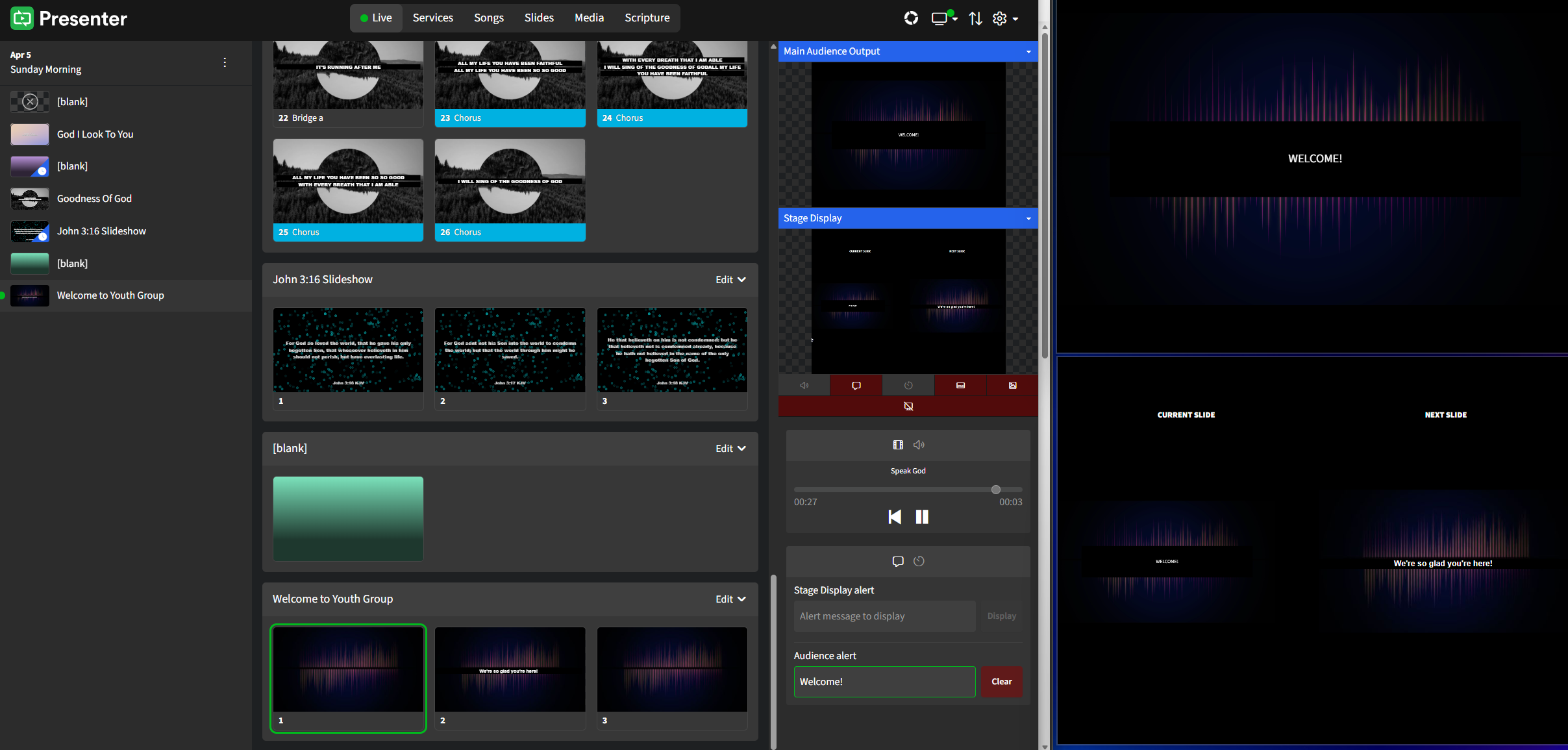
To quickly remove an alert, press the F12 key. This will eliminate both the Audience alert and the Stage Display alert if they are active at the same time. Use the Clear button to remove just one of the alerts if needed.