Troubleshooting
SongSelect Connection Error
For WorshipTools to access SongSelect, your church needs to sign in to CCLI from within WorshipTools using a valid CCLI Profile login (email and password). Typically, these logins are associated with a specific individual at the church. If that person leaves their position, their access may be removed from the CCLI user list, which will sever the connection between WorshipTools and CCLI.
To resolve this issue, follow these steps: Click on the ⚙ gear icon in the top right corner of Presenter and select Settings. In the next window, choose Connections from the menu on the left. Disconnect from SongSelect, then reconnect using an active SongSelect login for your church. This will re-establish the connection between the two programs, allowing you to import songs from SongSelect without any problems. You can also fix this issue in the Charts mobile app.
For any support related to SongSelect, please contact CCLI directly.
Please note that you must be an Organization Administrator on the WorshipTools account to update the CCLI integration. If you are not an Org Admin, please reach out to your Org Admin for assistance.
Remote app is not detecting Presenter
If Presenter is running but the Remote mobile app is unable to detect the session, it is likely because the two devices are signed in to different accounts. This situation typically occurs when Presenter is logged in with one user's credentials while Remote is logged in with a different user's credentials, and neither user is on the same WorshipTools account. Often, this indicates that the ministry has created a duplicate account. If you encounter this issue, please contact our Support team for assistance in resolving it.
Items are not syncing across multiple computers or WorshipTools apps
As long as all your devices are signed in to the same account* and are connected to the Internet, items should automatically sync across your WorshipTools account and devices. Once items are synced on the subsequent computer(s), you may work offline if needed.
*Users do not have to all sign in with the same email and password, but they need to be users under the same account.
When initially importing media to Presenter, make sure to check the progress bar at the bottom right corner of your Presenter window to make sure your import is complete before closing out of the program.
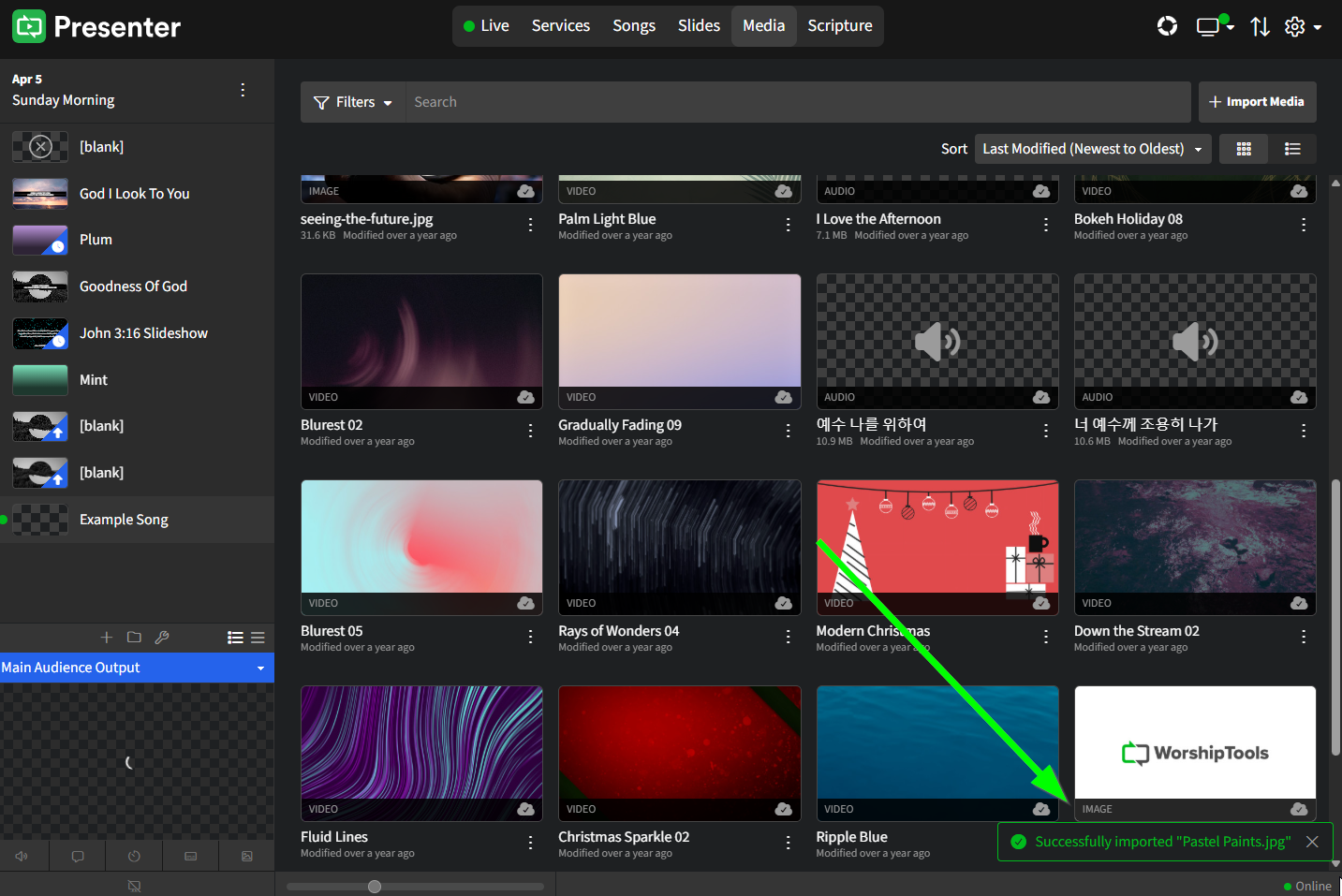
Another way to check the import status is to click the View button that appears when you hover over the media thumbnail. In the pop-up window that appears, look for the line that says Cloud. If it displays "uploading," please wait for Presenter to finish this process before exiting the program. This ensures that your media items are successfully uploaded to the cloud and can be accessed from your other computers.
"Difference between server time and local time too large."
This error message indicates that the local time on your computer is incorrect. Once you correct it, restart Presenter to continue syncing your libraries. You can check your local computer time at www.time.is.