Editing Song Slides
In Presenter, there are various customization options for editing Song slides. While using a Song Template to apply formatting to all Song slides is a quick method for customizing your service, each slide can still be formatted independently.
Applying a Template
When in the Song Editor, click in the box just below "Song Template" in the left-hand corner
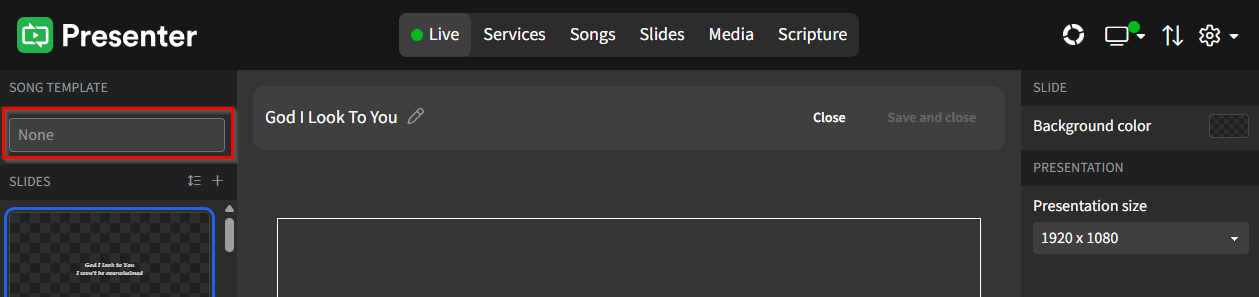
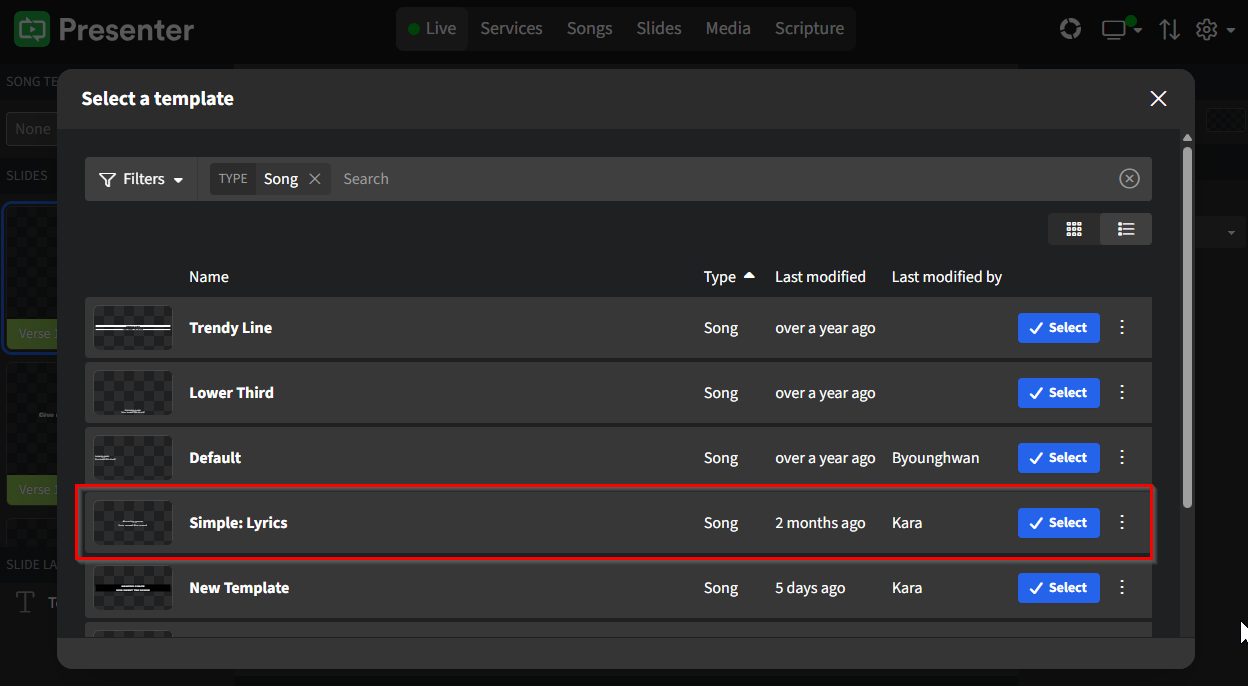
In the next window, select a template from one of the options in the results by clicking Select
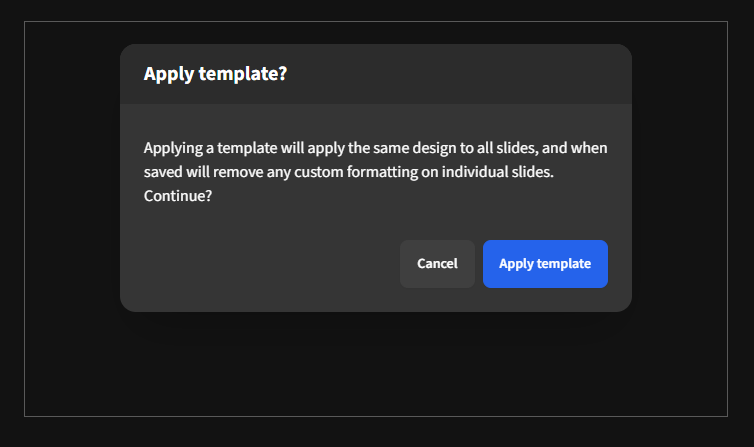
As mentioned at the beginning, applying a Song Template will apply the template's formatting to all of the Song slides and remove any customization made on the individual slides. Click Apply template when ready.
Make sure to click Save and Close when you finish editing the Song Slides. If you need to make changes to the template, click Edit Song Template on the right.
Alternatively, you can click Remove Template. This will maintain the current formatting while allowing you to edit the design of each slide individually.
Song Formatting
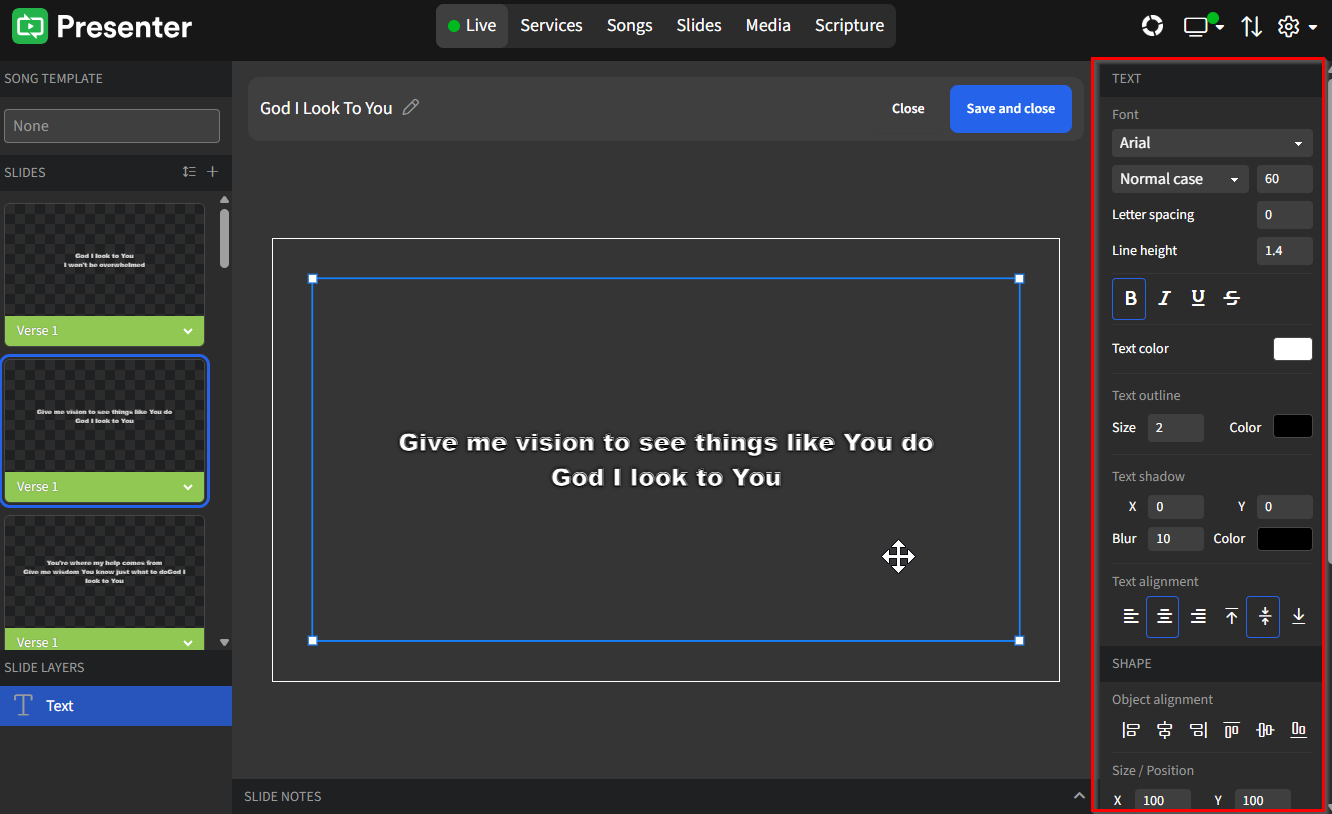
When editing a song, you have the option to make various formatting changes. Click on the text in the editing box at the center of Presenter. A formatting panel will appear on the right side, allowing you to adjust settings such as font, text color, outline, shadow, and alignment. Additionally, you can modify the shape by adjusting object alignment, size, position, and layer, including setting a background color. Finally, you can enhance the overall look by adding a slide background color to complement the formatted text and other styled elements. Don't forget to set the presentation size if necessary.
Break Slides
To create a slide break within your song, click the + option at the top of the Slides panel on the left, which will add a blank slide to the song.
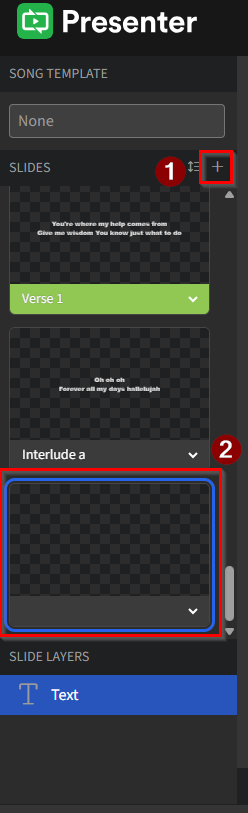
Drag and drop the blank slide to where you want to provide a "break" in the song. This feature is particularly useful for organizing your song into distinct sections, making it easier to follow along during performances or presentations.