Song Slide Labels
When working with lyrics slides in WorshipTools Presenter, you can assign slide labels and colors to each of the different song sections (i.e., Verse 1, Chorus, etc.).
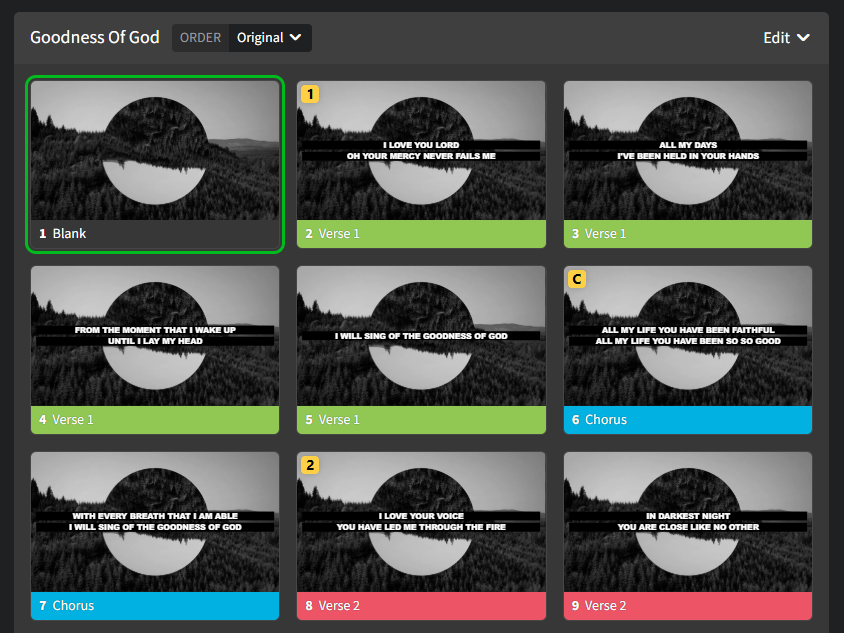
While it's not necessary to use these labels, they can be a helpful visual aid for your slides operator when they're controlling slides during a service. They also come in very handy when you're adjusting the line breaks on a song, as it allows Presenter to reorganize the song slides more intuitively.
By default, Presenter comes with labels and colors for Chorus, Bridge, and Verses 1 through 4.
To customize the labels, open your Presenter ⚙ Settings. Once there, locate Song from the menu on the left, then click on Song Slide Labels. Once there, you can rename your labels, create or remove labels, change the color assignments, and even adjust the keyboard shortcuts for each section. Just make sure to click Save after making any changes.
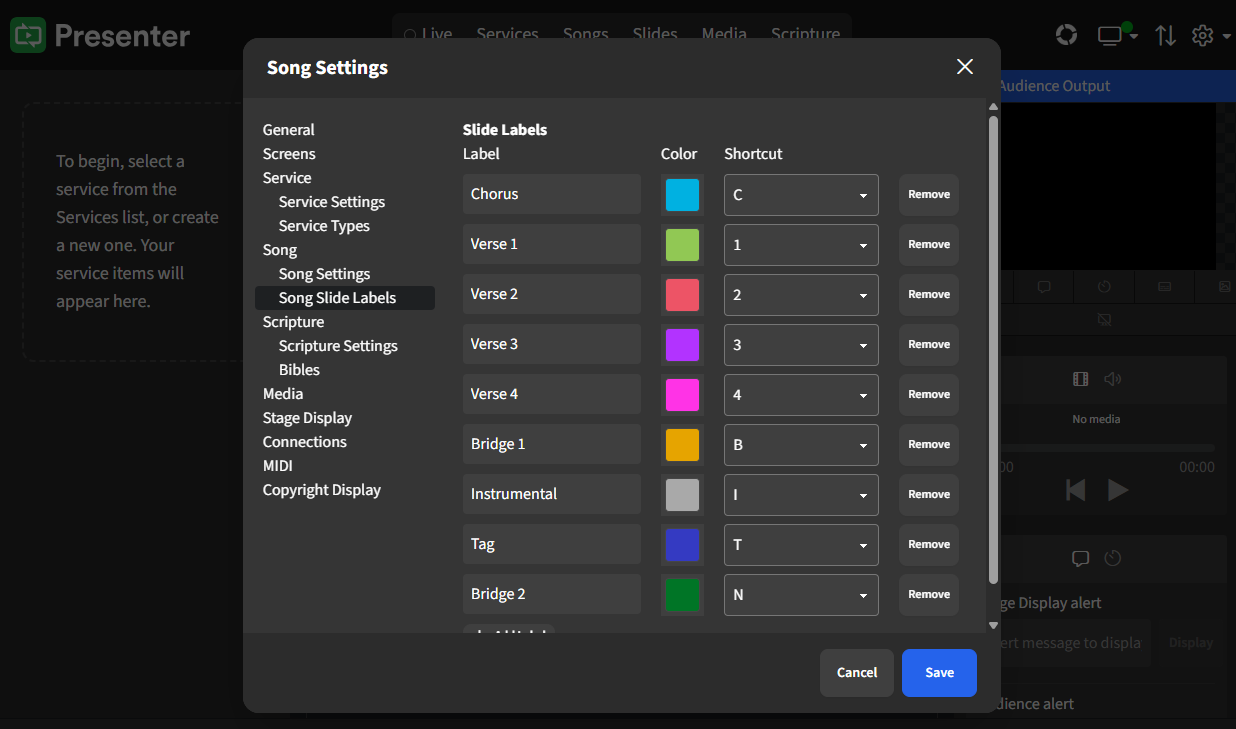
Once you configure your labels on the settings page, these labels will automatically be applied to any songs you import into your Song library. This means that you won't need to assign labels each time you add a new song manually; the system will seamlessly categorize them based on your preset configurations. Make sure to review your label settings periodically to ensure they align with your organizational preferences.