Media Library
The Media Library is a central location for storing images, videos, audio files, and presentations which are housed on Presenter.
Locate the media library by selecting Media from the top menu. Add additional items to your library by clicking the +Import Media button on the right, then choose from the list of options. Next, you should be prompted to select a file or multiple files from a directory on your computer. Be sure the files you will be selecting to import meet these requirements:
Images: JPEG, PNG, GIF
Video: MP4 (h.264 codec) *Note that videos added in a different format will be converted when imported.
Audio: MP3, M4A, WAV
You can also import additional media items from presentation programs like Microsoft PowerPoint and Keynote.
Once you have imported all your media items, they will be accessible for use in your service presentations and will be stored in your media library.
Additionally, you can adjust the view in your library to display the contents in either thumbnail view or list view.
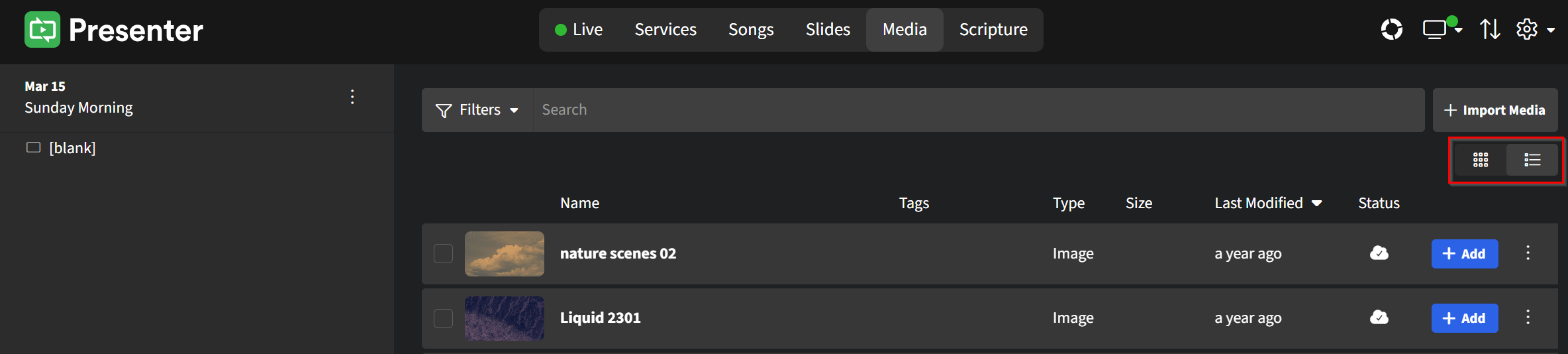
You can interact with and customize each piece of media in the library. Here are the options for the two view types:
Thumbnail View
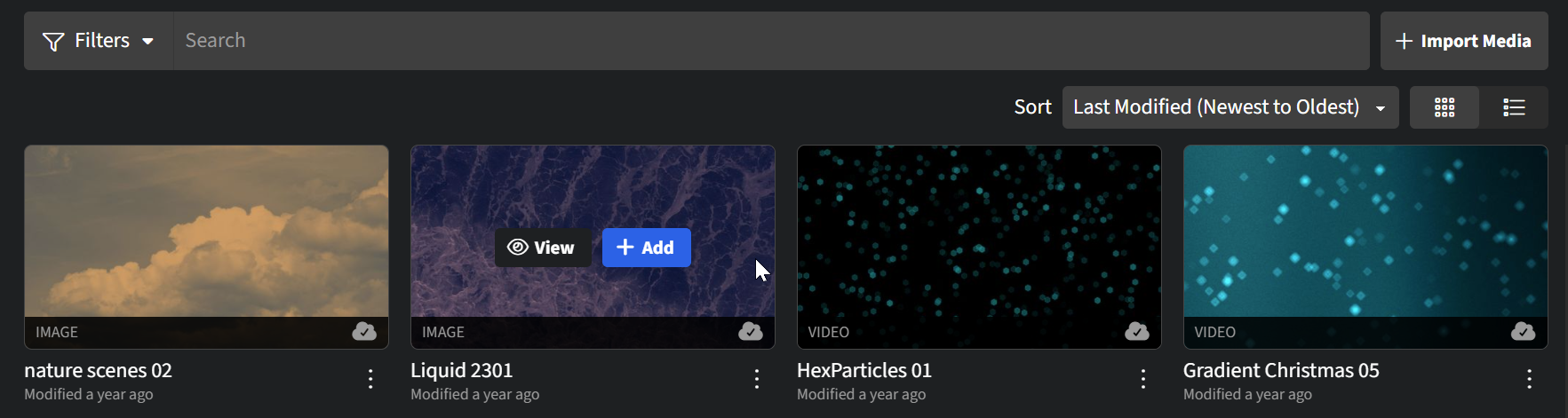
Hover your cursor over the media thumbnail to View its details or click the +Add button to immediately add the media as a service item to the current service.
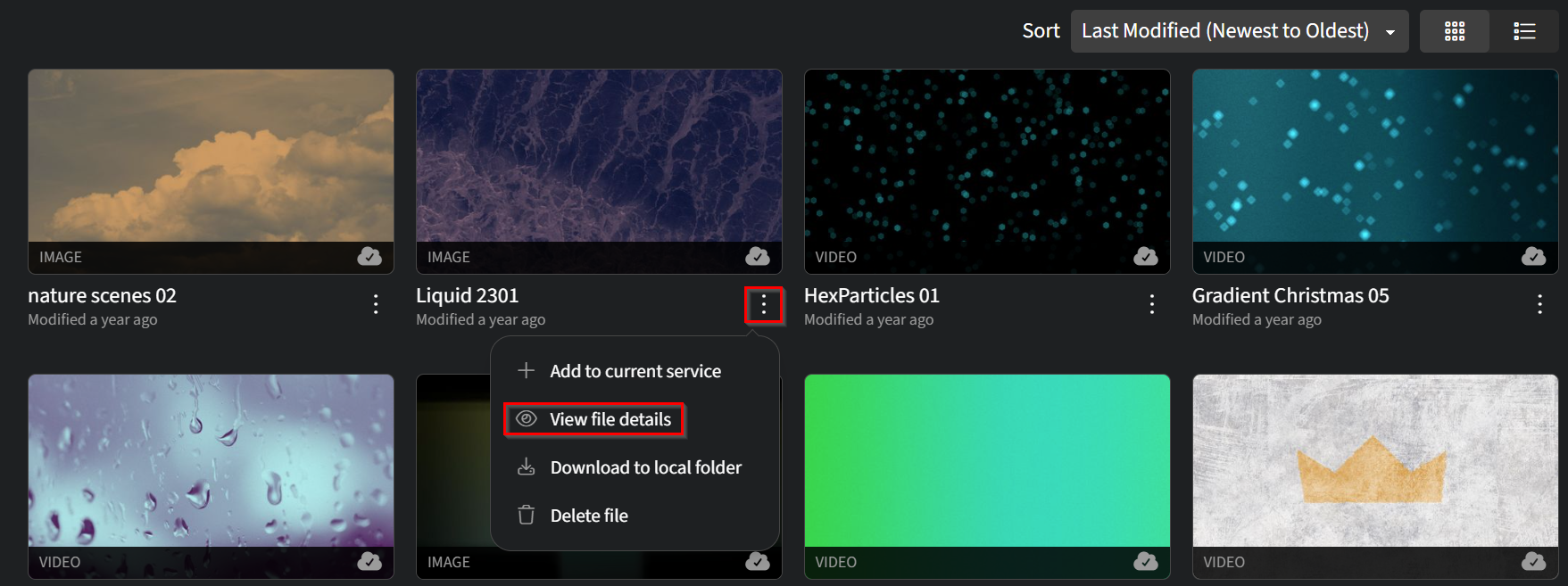
Click the item's ellipses for these same options and more, such as renaming the item, or adding a tag when you click View file details.
List View
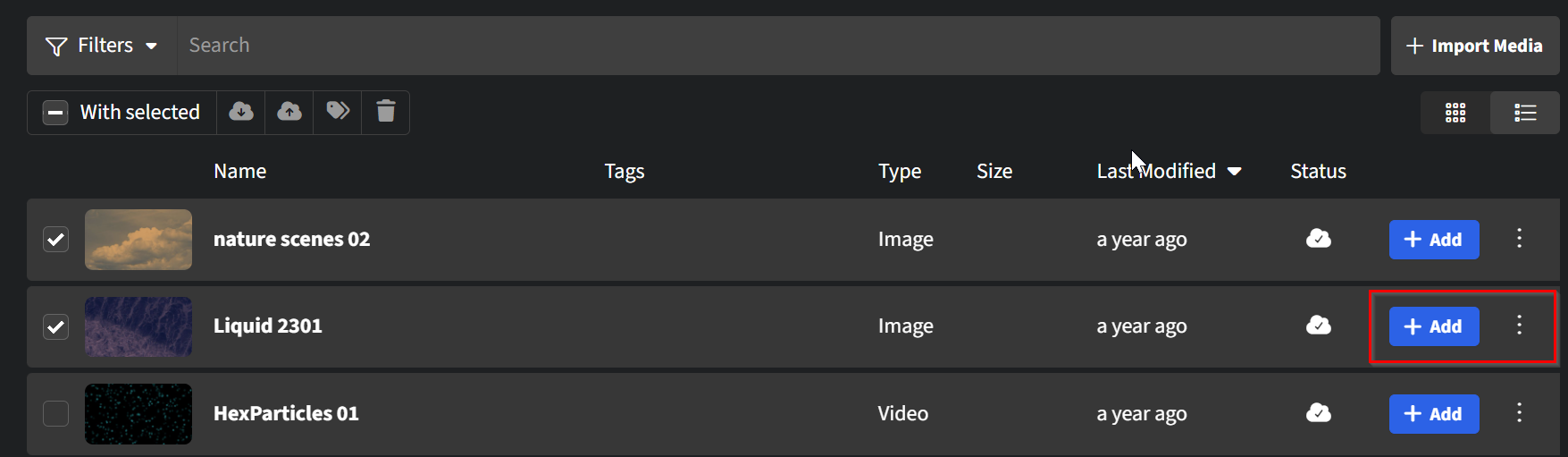
This view allows you to manage multiple items at once. Click the checkbox to the left of at least two of the media items. A small toolbar appears above the library panel with options to download, upload, manage tags, and delete.
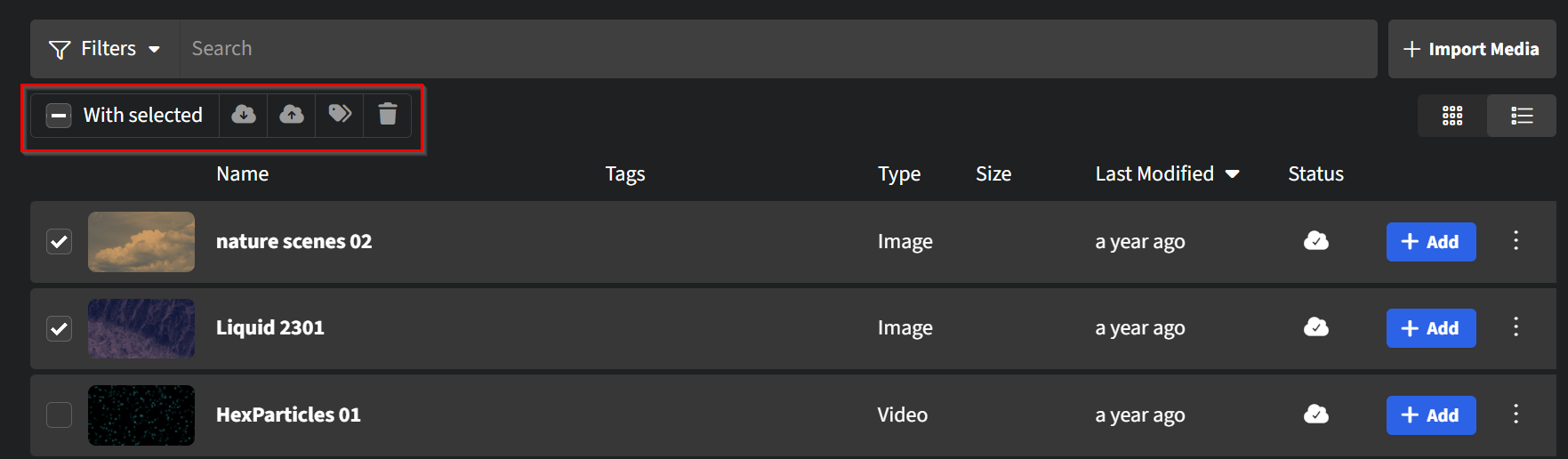
Additionally, you can click the +Add button to immediately add the media to your current service, or click the ellipses for options.