Checking Media Cloud Status
WorshipTools Presenter is a cloud-based presentation application, which means all your service data automatically syncs across any computers logged into your WorshipTools account. As long as you have an internet connection, you and other users on your account can work on service presentations from any computer.
Certain items, including your services, songs, and Presenter Slides, sync automatically across devices. However, any media files imported into Presenter from your computer must be saved to the WorshipTools Cloud to enable syncing. The Auto Sync feature is turned on by default, ensuring that all your files are saved to the cloud as soon as they are added to Presenter.
If the files in your Media Library are not syncing with other Presenter computers, check for the cloud icon next to each item. If the icon is empty and has an x inside it, the item is not syncing to the cloud. Conversely, items that have successfully synced will display a filled icon with a ✓ inside it.
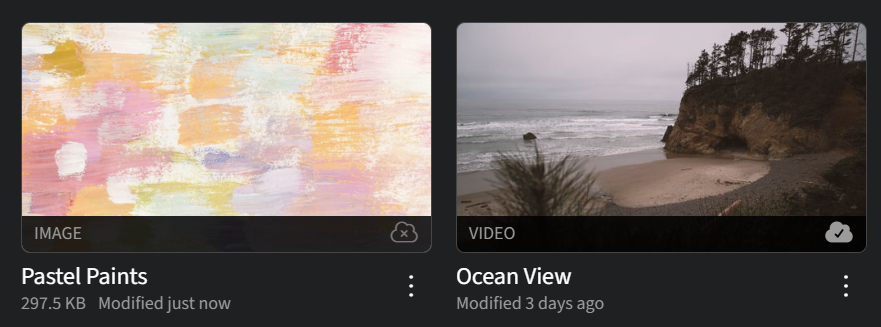
To sync a media file to the cloud, simply click on the cloud icon, and Presenter will take care of the rest!
If all your media is stored in the cloud but you're experiencing syncing issues across multiple computers, the problem may not be with the cloud itself. First, ensure that Presenter is running in Online Mode on all computers. You can verify this by checking for the word Online accompanied by a green dot in the bottom right corner of your Presenter window. If you see a red dot with Offline displayed, check your network connection and restart the program to reconnect. If issues persist, please feel free to contact WorshipTools Support for assistance.