Intro to Services and Items
In Presenter, two key components you will work with are Services and Service Items.
A Service Item refers to each program element presented to your audience during a specific service. This item can be a standalone piece of media, such as an image, video, or motion graphic, or it can be a collection of slides, including song lyrics, sermon slides, announcement slides, or Scripture excerpts.
The Service represents your entire presentation, organized by item in the order they will be presented. It is recommended to create a new WorshipTools service for each service your ministry holds. At any time, click on Services in the top menu to view both past and current services.
How to Create a New Service
Click the Services button on the command bar, then +New Service located on the right side of Presenter

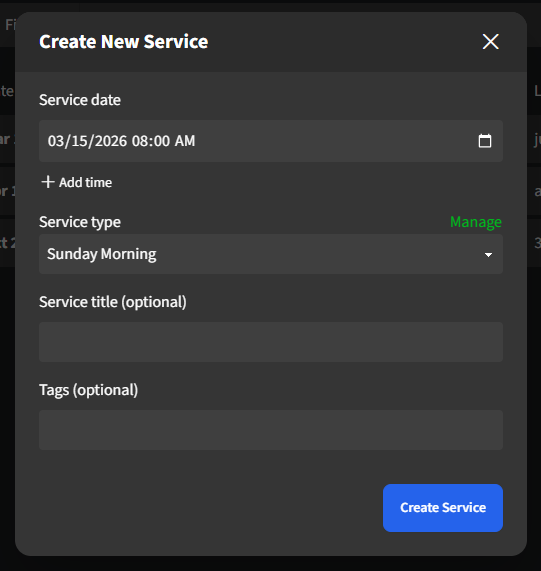
In the Create New Service window, start by selecting a Service date for your upcoming service. If the service repeats on the same day but at a different time, click on +Add Time. Any multiple-service dates created within a single service will automatically inherit all the applied Service Items. If you need a distinct and unique service, you can create a new service instead.
Next, choose a Service Type from the drop-down menu, or click on Manage to add a new service type to Presenter. If you prefer, you can also include optional features such as a Service Title or Tags. Once you are ready, click Create Service to add it to Presenter.
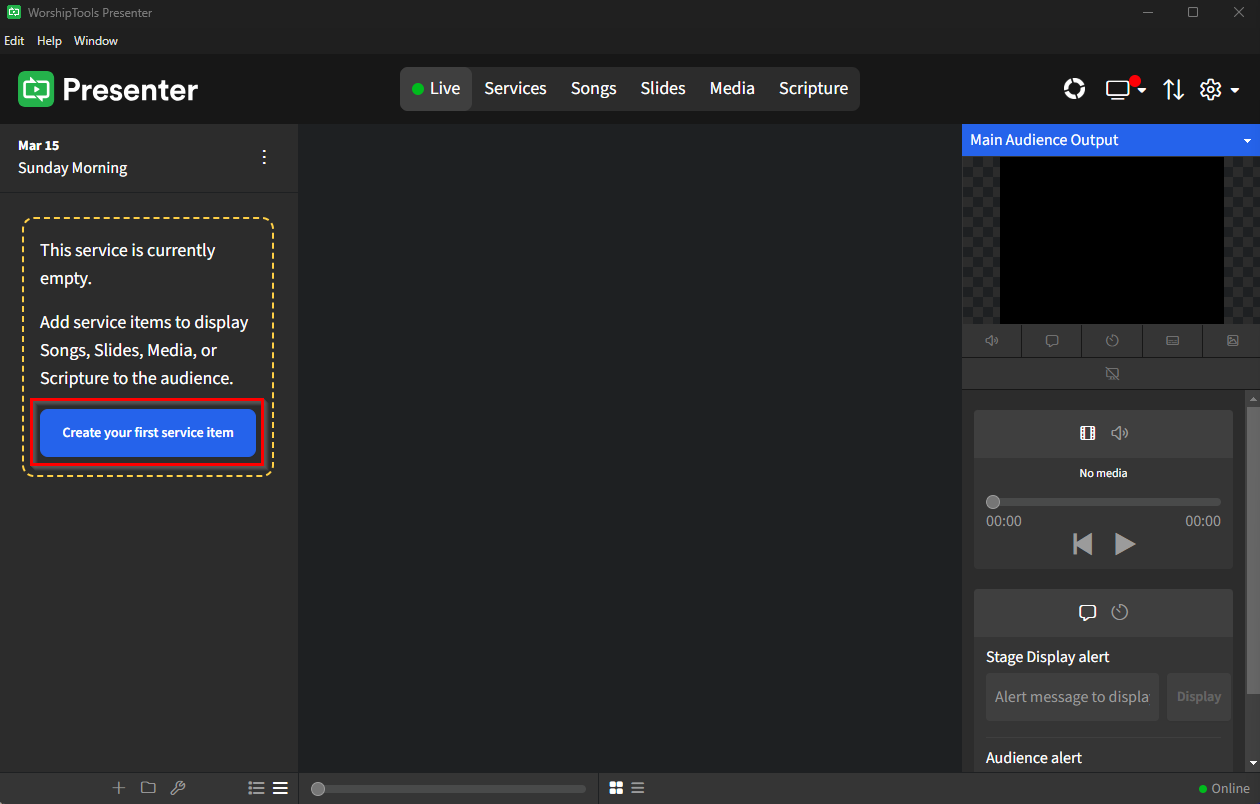
Your new service opens this blank page. Click on Create your first service item from the left side of Presenter to add a new Service Item.
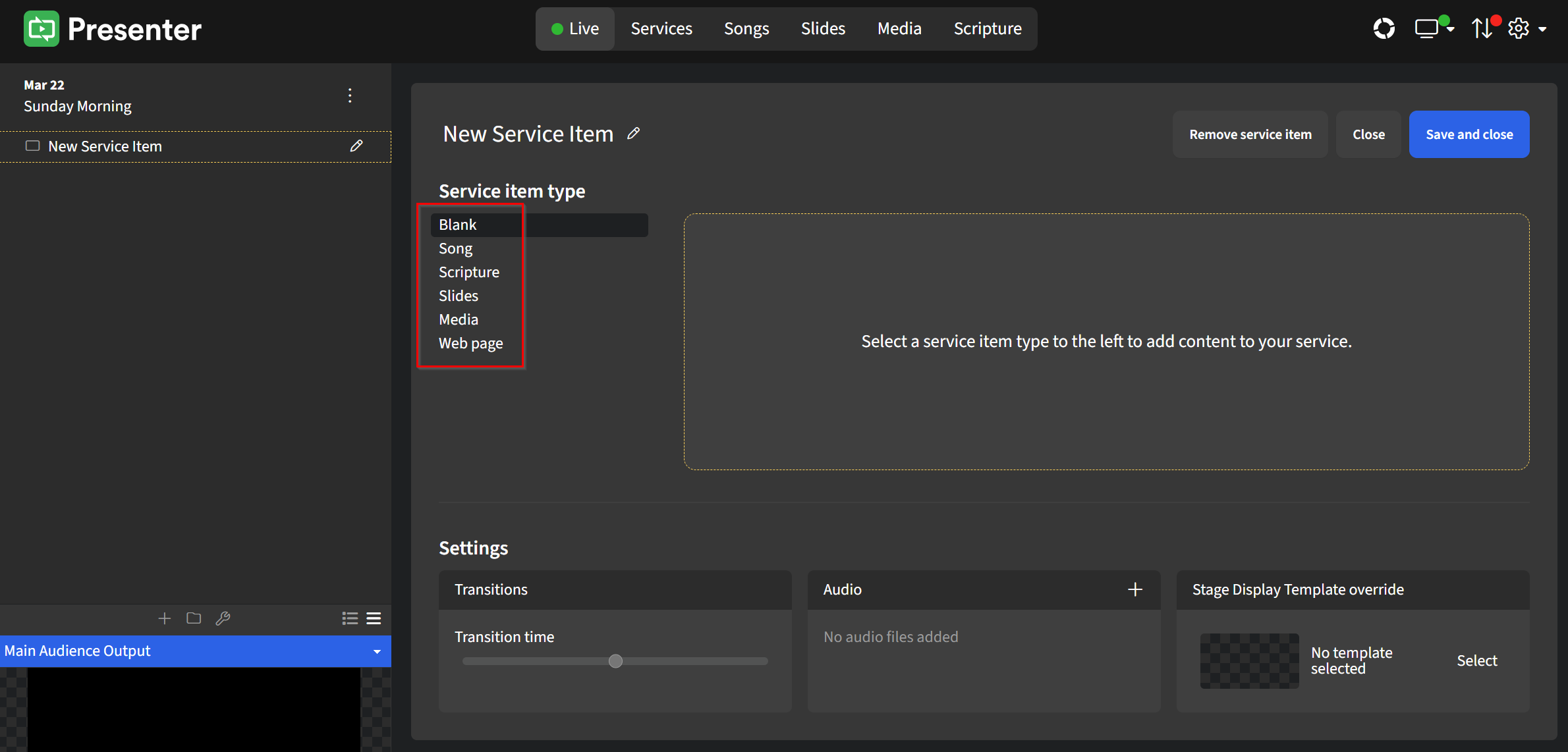
Immediately, Presenter will display the New Service Item editor window. From here, you can select the type of service item you'd like to add to your service by selecting it from the list on the center-left, such as:
- Blank
- Song
- Scripture
- Slides
- Media
- Web page
For more information on each type of Service Item, please read About Service Items.
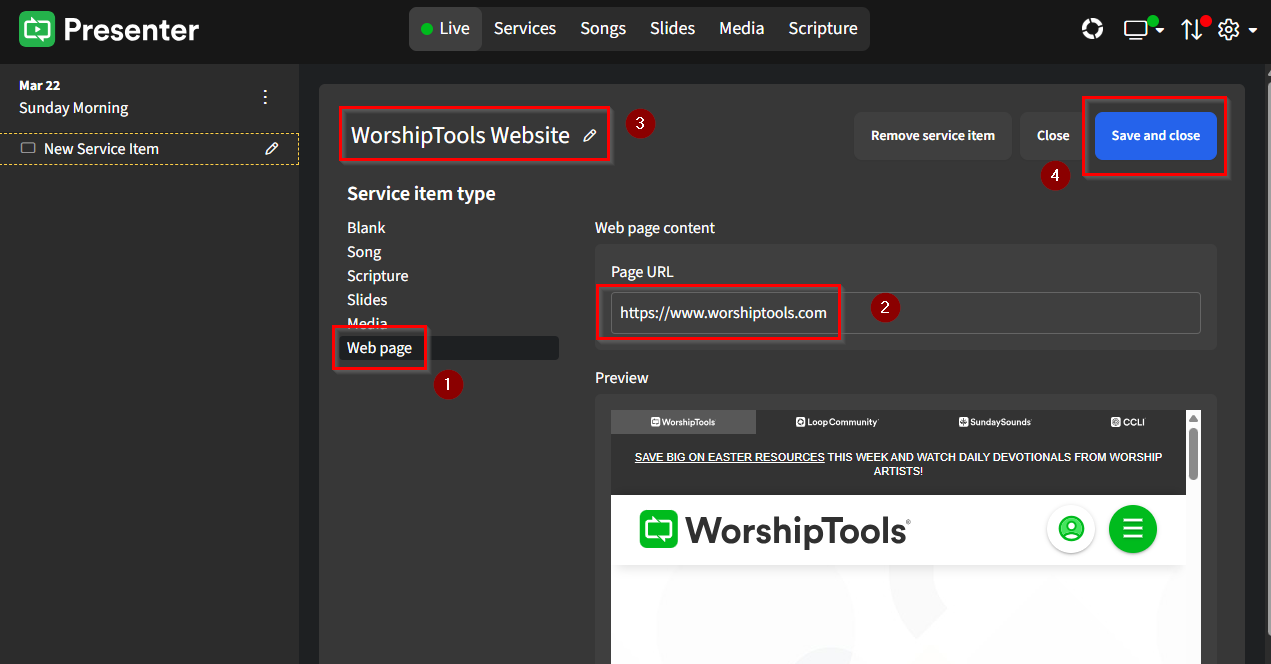
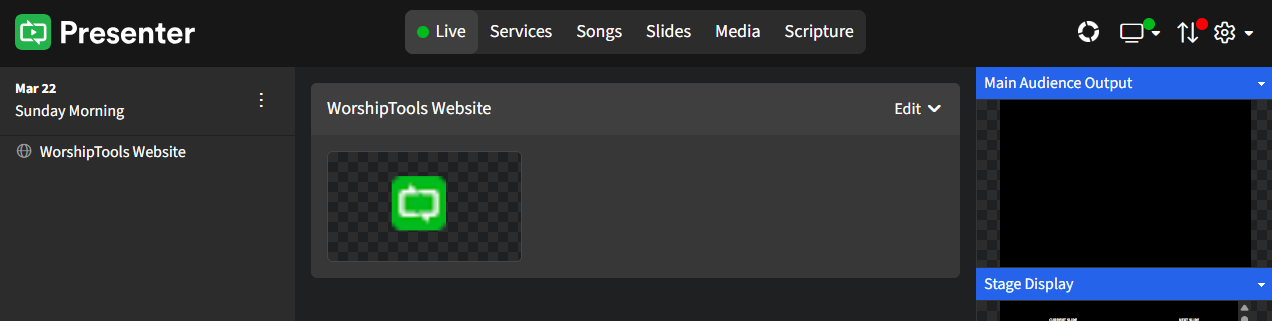
For this example, we'll add a Web page as our first service item. Enter the designated URL into the Page URL box, and next a Preview window will display just below with a live view of the website. Give this service item a name by typing it into the title box in the top-center-left, then click Save and Close in the upper right.
Your web page service item has been added to your service! Here's how it looks in Presenter.
Continue adding more service items until your service is ready. Check out Editing Service Items for additional instructions on customizing your service items.