Setting Up Additional Screens
WorshipTools Presenter allows you to set up multiple output screens, each featuring a unique visual layout. There is no limit to the number of screens you can use; Presenter can accommodate as many displays as you have connected to your computer. To access this feature, be sure to subscribe to WorshipTools Pro or Pro Plus.
Screen Configuration Settings
To set up your screens in Presenter, click on the ⚙ gear icon in the top right corner, click Settings, then choose Screens from the left column.
Presenter has two screens built in, ready to use: Main Audience Output, for your main audience content, and Stage Display as a confidence monitor to communicate with your team members on stage.
If any physical displays are connected to your computer, they will populate within the Output section when choosing Display. Note that Presenter will automatically exclude the computer itself as a Display option.
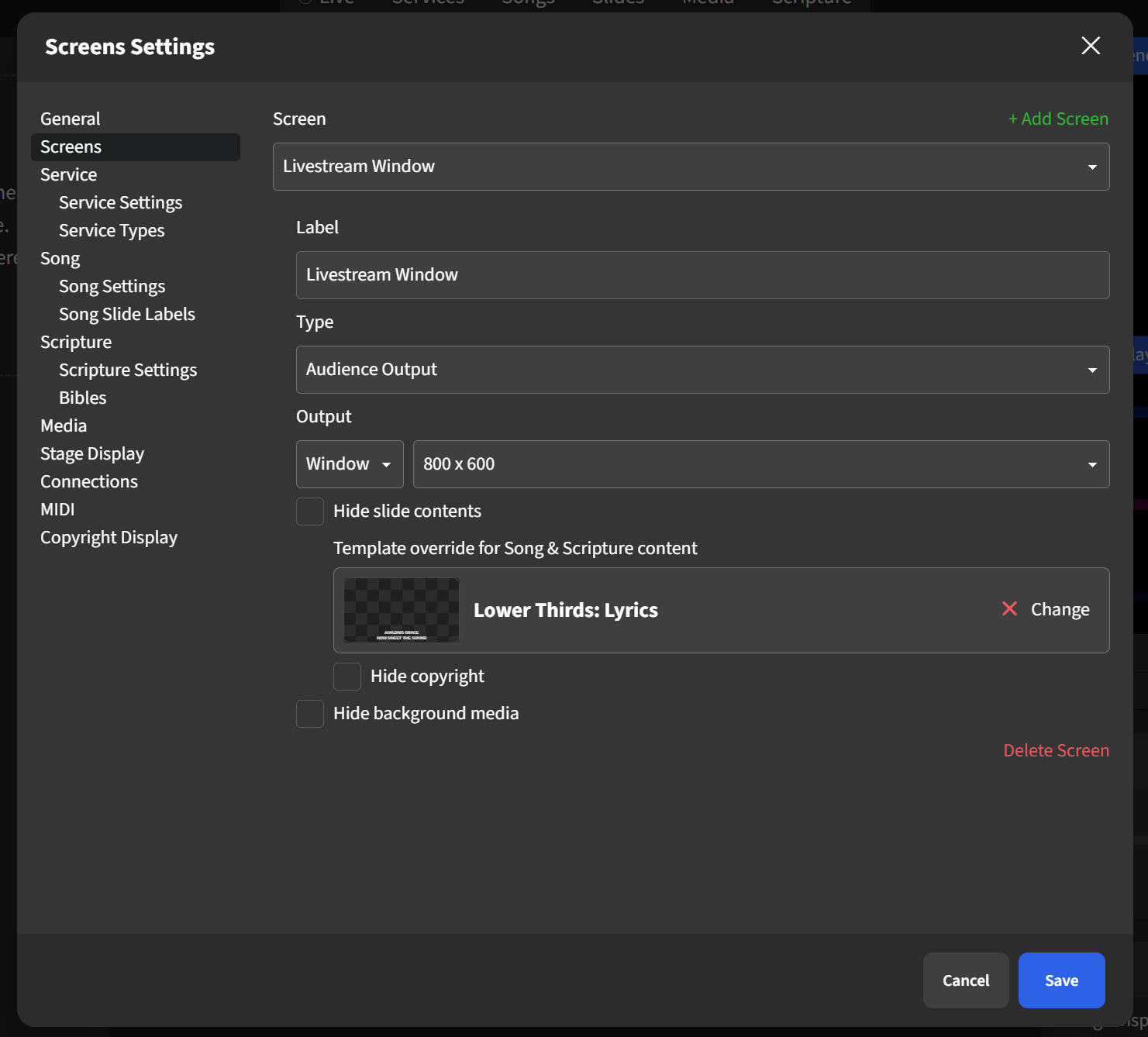
Change the Screen option to Stage Display to select its display output. If your church doesn't use a Stage Display, select Off under Output. Make sure to Save the settings.
Adding and Configuring a New Screen
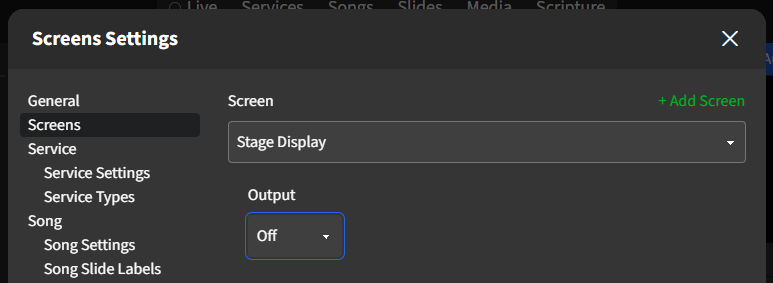
To add a new screen, click + Add Screen, then give it a name via the Label box. For this example, the third screen is labeled as Livestream Window.
From the Type drop-down menu, select whether this new screen will be an Audience Output or Stage Display. Next, we'll change this third screen's Output by selecting an option from its drop-down menu. If all additional displays are already in use, you can set the Livestream Window to a Window display. (Read more about the Window display option here.)
The next configuration option for this screen is Template override, which is only compatible with Song and Scripture content. This is where you can designate a different visual format for the text being displayed on the selected screen without affecting the other screens. Click Select to choose from the provided template options. We will assign the Lower Thirds: Lyrics template to this screen. If you change your mind on the selected template, click the X to the left of Change to clear the template.
Finish selecting any other settings for your new screen and make sure to click Save.