Advanced Services Features
Advanced Service Features in Presenter include Auto Advance and Service Item Groups.
The Auto Advance function in Presenter instructs a service item to move on to another specified item without any manual operator input. This feature is only available for Slides and Media service item types.
Media
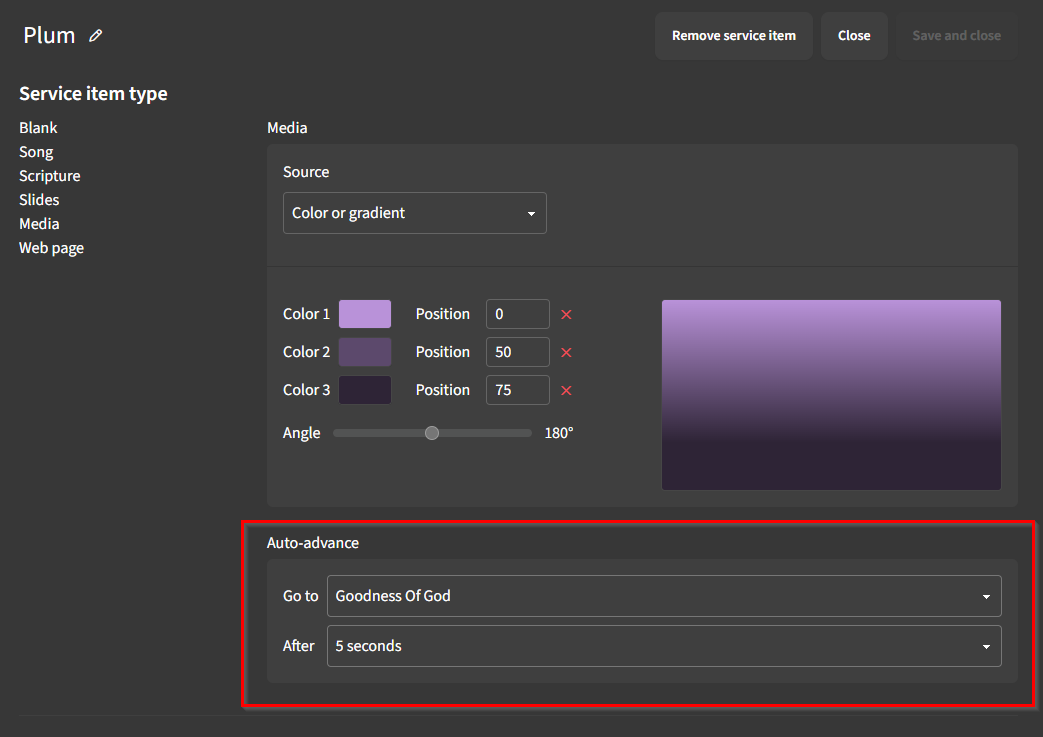
If the Source of your Media service item type is either Media from your library or Color or gradient, you will be able to assign the Auto-advance settings. Select one of the options from the Go to dropdown, then choose seconds or minutes from the After dropdown.
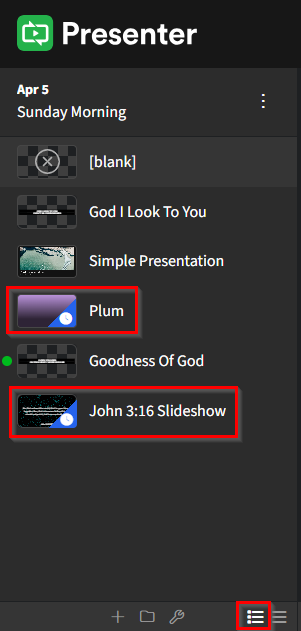
After enabling Auto Advance for an item, a clock icon will appear in the service item thumbnail located in the left service pane when viewing service items in the expanded service view.
Slides
The Auto Advance option for slides is available regardless of the background media selected as a source for the slideshow, which can also be inherited from the previous slide or even be a video feed.
Creating a Loop
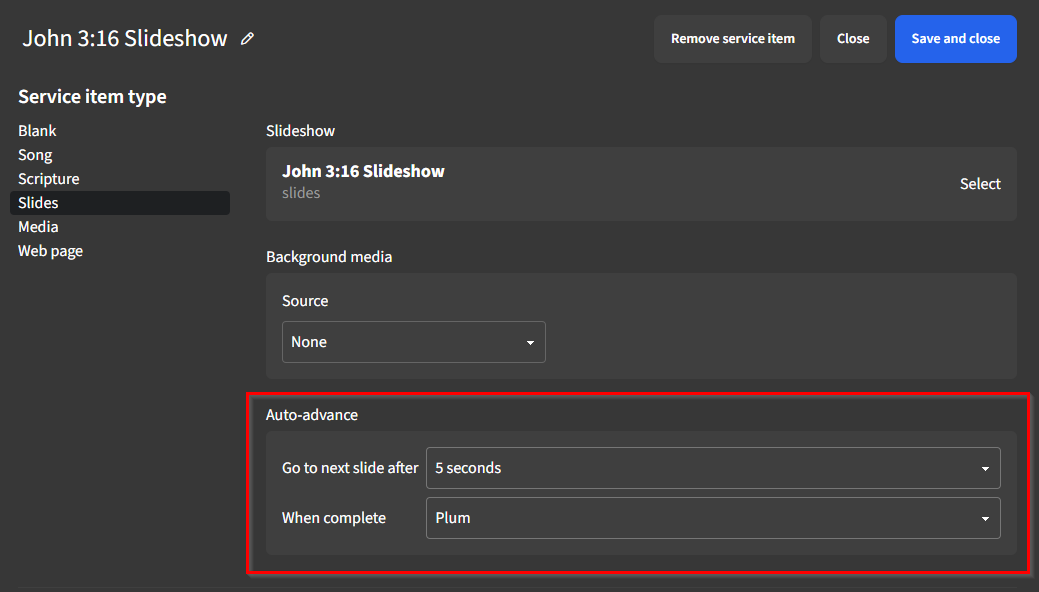
To create a loop, ensure that the last item in the loop is programmed to return to the first item. In this screenshot, the scripture slideshow is configured to advance to the first service item assigned with Auto Advance, thus creating a continuous loop.
Service Item Groups
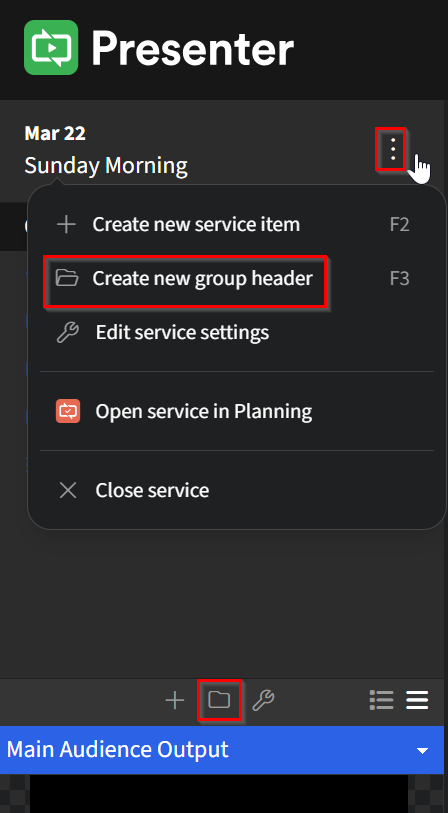
If your service includes multiple items, you can create Service Item Groups to visually organize them. Click on the ellipsis next to the service date or on the folder icon below the service items.
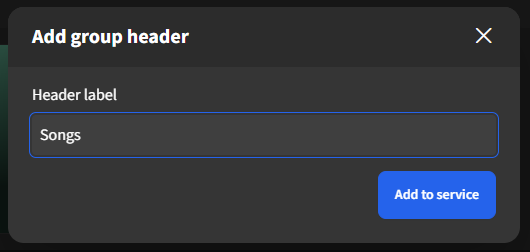
In the Add group header pop-up window, type in a name for this item, then click Add to Service
Once added, the Service Header appears in the list of service items. You can rearrange any Service Item by left-clicking and dragging it to a new position in the list.
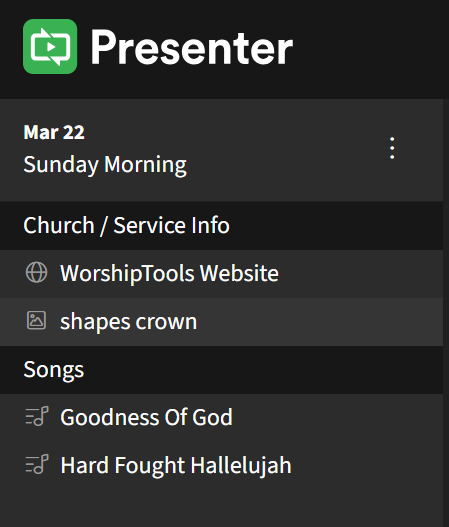
Please be aware that Service Item Groups do not remain nested with other service items after rearranging them. You can only edit their names, and to delete the headers, right-click on them and select Remove.