Auto-reporting to CCLI®
WorshipTools makes it easy to report your song usage through the CCLI Auto-reporting feature. When you use songs in your WorshipTools services, the platform automatically sends that data directly to CCLI. This saves your church the extra effort of reporting through CCLI's reporting portal.
You can enable this automated reporting feature in any of the three WorshipTools apps: Presenter, Charts, or Planning. Once you activate the setting in one app, it will be applied across all three, so you don't need to repeat the process. (Note: You must be a WorshipTools Org Admin to access and activate this setting.) The data is submitted to CCLI a day or two after your scheduled service, so if you make any last-minute or on-the-fly changes to the setlist during the service, make sure those changes are updated in WorshipTools by the end of the day to ensure accurate reporting.
WorshipTools submits Auto-reporting only for the Copyright License and the Streaming License.
Presenter
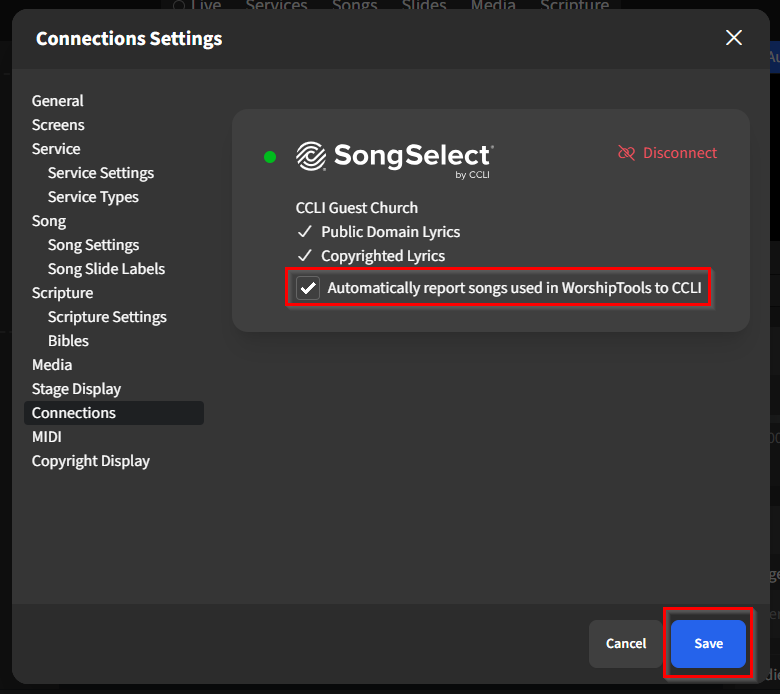
To enable this feature in Presenter, click the ⚙ gear icon located in the upper right corner and select Settings. In the left menu, choose Connections. Under your CCLI connection, check the box labeled Automatically report songs used in WorshipTools to CCLI, then click Save.
Charts
Head to the Charts' Settings page. Towards the bottom, you will find your CCLI SongSelect Connection with the new option to "Auto-report song usage to CCLI." (You may need to scroll down on the Settings pop-up window to see the Auto-reporting button.)

Planning
In the Planning web app, click on your name in the upper right corner and go to the Settings page. Locate your CCLI SongSelect integration, then check the box adjacent to Automatically report songs used to CCLI.
Planning helps maintain a continuous record of your ministry's automated reporting activities. To view this information, click on your name in the upper right corner and select Activity Log. This section will show you the number of songs reported. If you want to view or modify your reports after they have been submitted, you can log in to the CCLI Reporting Portal.
