Setting Up Your Screen
WorshipTools Presenter was designed to help you create service presentations and share them with your church community, whether you gather in a sanctuary, at home, in a classroom, or online. This article will guide you through the initial setup of your main audience screen.
These instructions are for setting up a single main screen. If your church requires multiple displays or if you want to set up a Stage Display confidence monitor, please refer to the article on Setting Up Additional Screens or explore other helpful resources in our Support Documentation.
Preparing the Screen
First, make sure that your external display, such as a projector or television, is properly connected to the computer running Presenter. You can verify this by checking your computer's display settings. Additionally, ensure that screen mirroring is turned off. For detailed instructions, please refer to this link: Working with Extended Displays.
Configuring the Screen in Presenter
Once your external display is connected and screen mirroring is turned off, open Presenter and navigate to the Screen settings page. To do this, click the computer monitor screen icon in the upper right corner, located to the left of the gear icon, then select Screen settings.

From the Screen drop-down menu, choose Main Audience Output. Below that, in the Output option, select your preferred output of either Display, Window, or NDI and then click Save. Your settings should look similar to the example below of where the Main Audience Output is being directed.
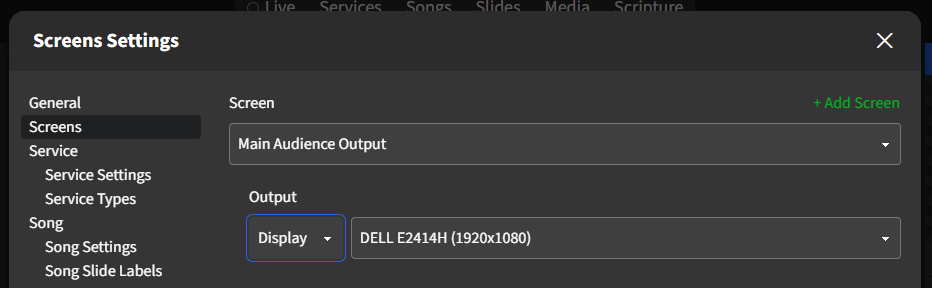
After this setup is complete, you should be able to start your presentation and see it displayed on the big screen. Now, you're ready to continue building your lyrics, Scripture passages, and sermon slides for your service.